Approvals
Learn how to review, approve, or reject the annual maintenance plan that has been submitted for approval to the body corporate.
Submit current working year for approval
The Approval Screen allows users to manage the approval process for the annual maintenance plan and budget.
It ensures that changes are reviewed and confirmed before becoming final.
How it works
Throughout the year, the budget for the current period remains open and editable.
During this time, users can:
-
Create new maintenance tasks
-
Adjust existing tasks
-
Update costs, frequencies, and other settings
Once the maintenance plan and budget are finalised, they can be submitted for approval.
Submitting for approval
Submitting the budget will lock the maintenance plan, preventing any further edits.
This ensures the version submitted for approval remains consistent during review.
Approval status
After submission, the budget can be:
-
Approved – the plan is confirmed and becomes the official budget for that year.
-
Rejected – the plan is unlocked, allowing users to make adjustments and resubmit.
Unsubmitting a budget
-
Before the budget is approved or rejected, the user can unsubmit it at any time.
-
Unsubmitting will unlock the maintenance plan, allowing further changes.
Key points
-
Only one budget can be open for editing at a time.
-
Once submitted, no changes can be made until the review process is complete.
-
The approval workflow helps maintain accountability and ensures all updates are properly reviewed before being finalised.
Approve or reject current working year
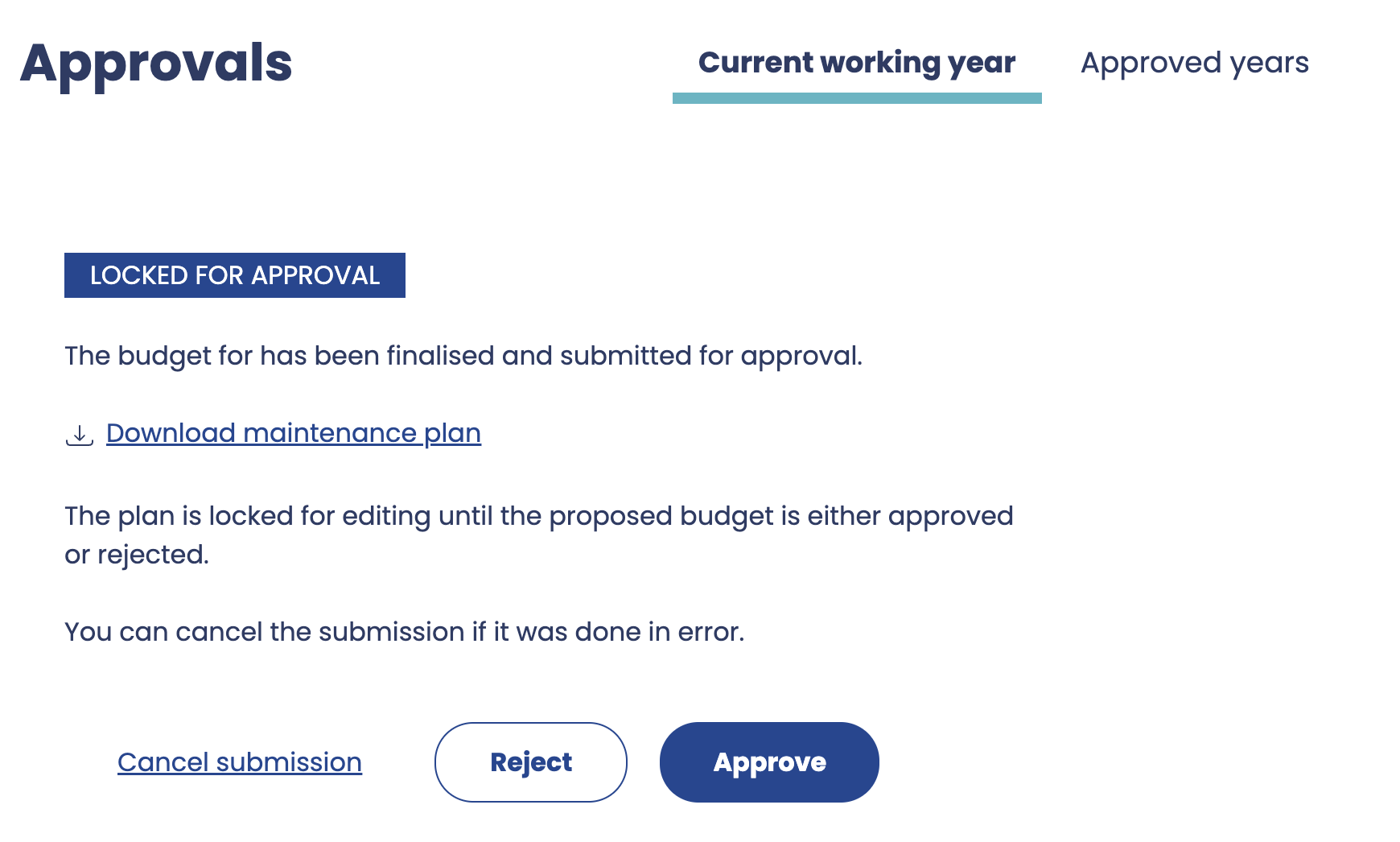
Once a budget has been finalised and submitted for approval, it moves to the Budget Approval screen.
From this page, users responsible for reviewing the plan can take one of several actions.
Available actions
-
Approve
-
Confirms the proposed maintenance plan and budget as the official budget for the year.
-
Once approved, the year can't be edited anymore and becomes the authoritative version used for reporting and forecasting.
-
-
Reject
-
Sends the budget back for revision.
-
The plan is unlocked, allowing users to make adjustments and resubmit for approval.
-
-
Cancel Submission
-
If the budget was submitted in error, the user can cancel the submission.
-
This reopens the plan for editing without triggering an approval or rejection.
-
Reviewing the plan
Before approving or rejecting, the user can:
-
Download the Maintenance Plan PDF report for offline review or sharing.
-
Open the Maintenance Plan within the application to review details such as tasks, costs, and forecasts.
Locked during review
While a plan is awaiting approval:
-
No edits can be made to the maintenance plan and its tasks.
-
The budget remains in a read-only state until an action (approve, reject, or cancel) is taken.
Key points
-
Approval finalises the budget and prevents further edits.
-
Rejection unlocks the budget for revision.
-
Cancelling a submission reverses the submission process, allowing further edits before resubmitting.
-
PDF exports and in-app review tools make it easy to verify details before final approval.
Approved years
The Approved Years page provides an overview of all previously approved maintenance plan budgets.
It serves as a record of past approvals, allowing users to review historical decisions and access approved documentation.
Viewing approved years
For each approved year, the following details are displayed:
-
Submitted by – the name of the user who submitted the budget for approval.
-
Submission date – when the budget was formally submitted.
-
Approved by – the name of the user who approved the budget.
-
Approval date – the date the approval was granted.
-
Approved contributions – the total contribution amount approved for that year.
-
Approved plan PDF – a downloadable copy of the maintenance plan as it was approved, preserving a historical snapshot.
Reviewing past approvals
This page allows users to:
-
Download or review approved budgets for reference.
-
Verify who approved and when each decision was made.
-
Maintain a transparent audit trail of the approval history.
Reset approval
In some cases, it may be necessary to reset an approval — for example, if the plan needs to be reopened for adjustment.
-
The Reset Approval feature becomes available only if no changes have been made to subsequent years of the plan since the approval was granted.
-
Resetting the approval will unlock that year’s budget, returning it to an editable state.
Key points
-
Provides a clear historical record of all approved budgets.
-
Allows users to review, download, and verify previous approvals.
-
The Reset Approval option gives admins flexibility while preserving data integrity.