Getting started
A quick introduction to CommonView, including how to log in, navigate the system, and set up your first maintenance task.
- Property overview and AI assistant
- Draft tasks
- My contributions don’t show
- Import an existing maintenance plan
- Getting Help
Property overview and AI assistant
When creating an account, users are given the option to build their Maintenance Plan using our AI Assistant.
This smart setup helps generate a tailored plan automatically, based on the building’s characteristics and features.
Alternatively, users can skip this step and create their plan manually from scratch.
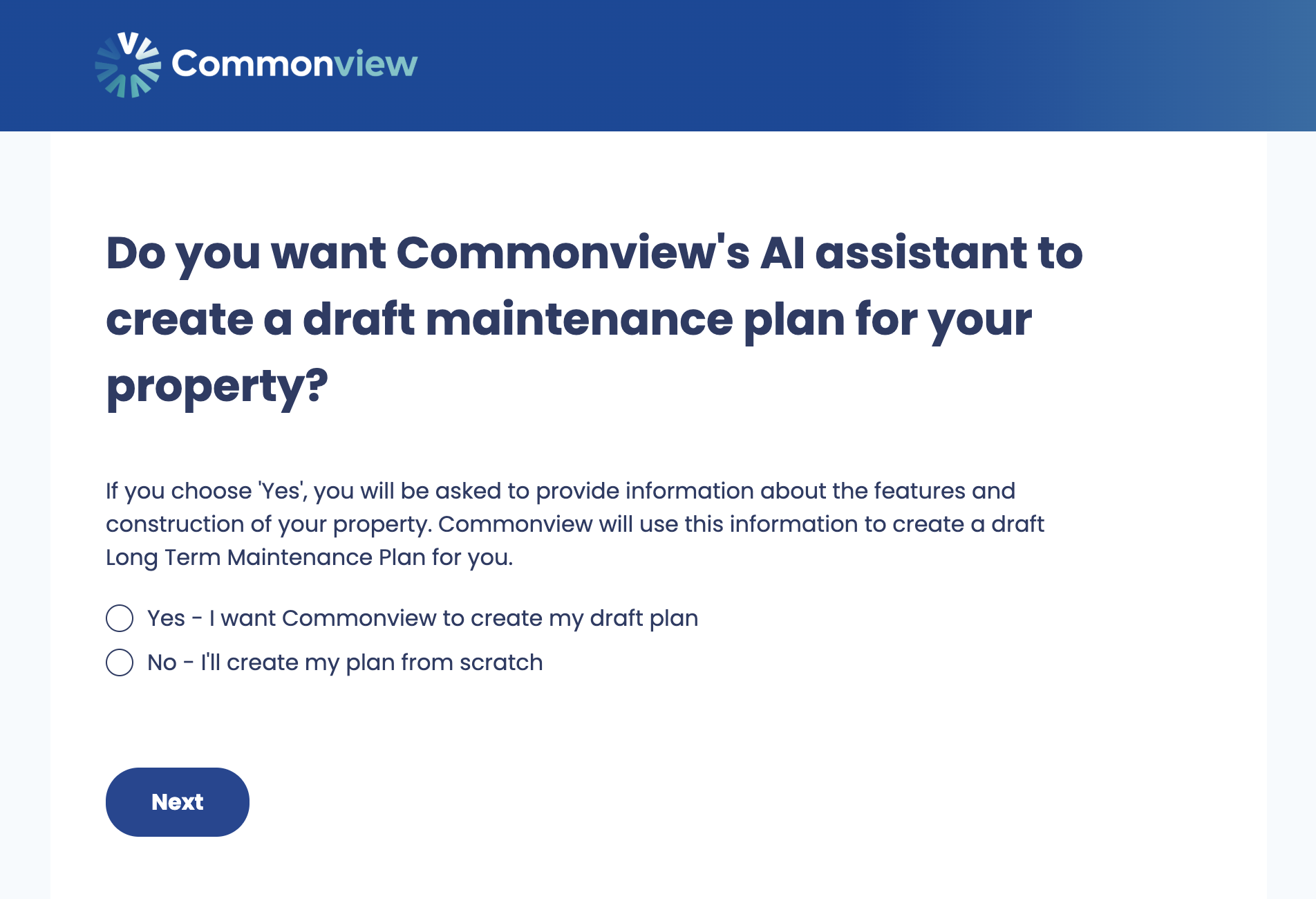
Using the AI assistant
If you choose to use the AI Assistant, the app will guide you through a questionnaire about your building.
You’ll be asked to describe key aspects such as:
-
Type of cladding
-
Type of roof
-
...
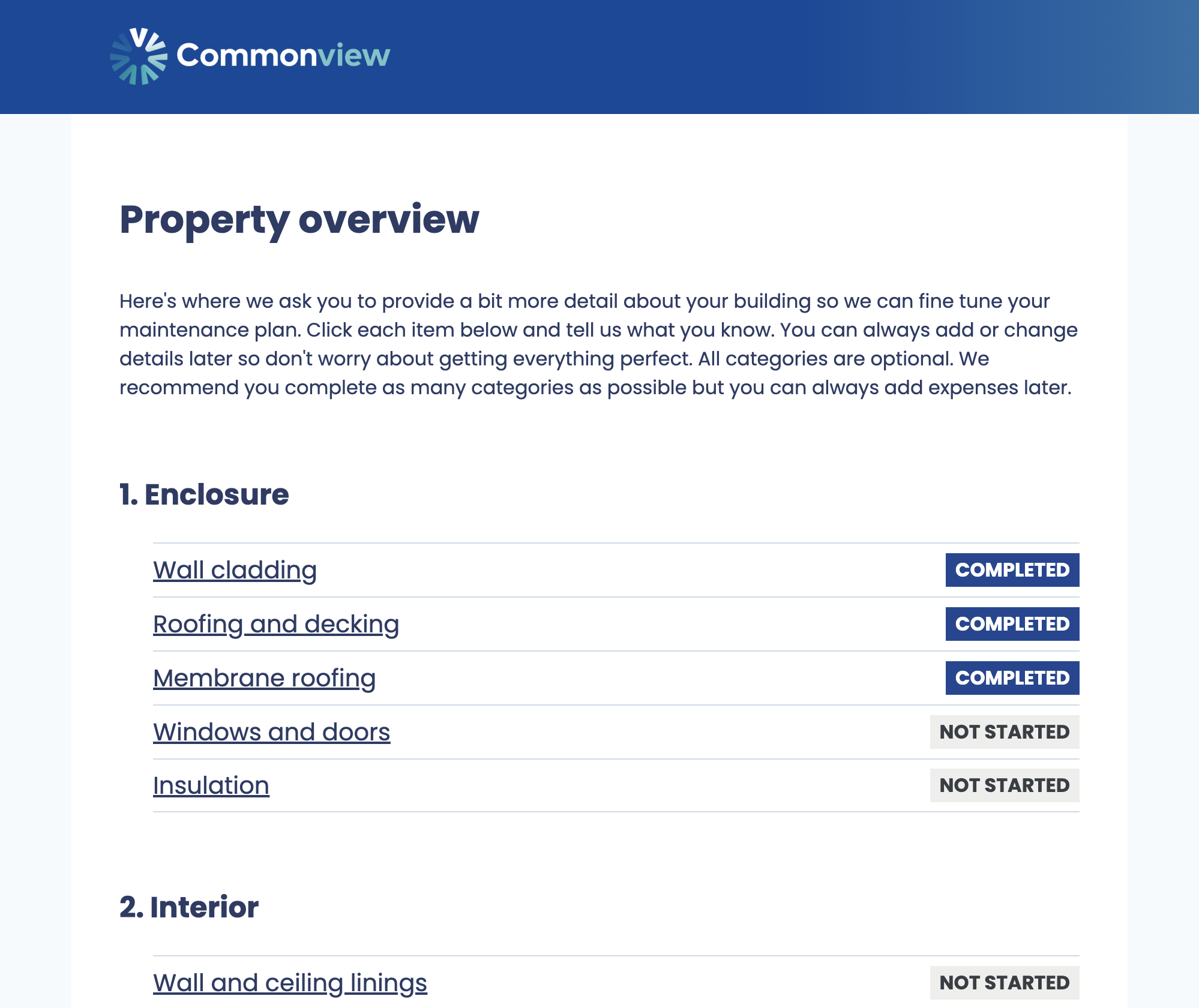
The AI Assistant uses these details to automatically create relevant maintenance tasks in your plan.
Example
For instance, if you indicate that your building includes a lift, the AI Assistant will automatically add the following tasks to your Maintenance Plan:
-
Lift and escalator inspection
-
Lift and escalator replacement
-
Lift and escalator servicing
Why it matters
The more information you provide, the more accurate and complete your Maintenance Plan will be.
We recommend describing your property as comprehensively as possible to ensure the plan covers all essential building elements and long-term maintenance needs.
Draft tasks
By default, the AI Assistant creates draft tasks when generating your Maintenance Plan.
Draft tasks can be easily identified by a “Draft” label displayed next to the task name:
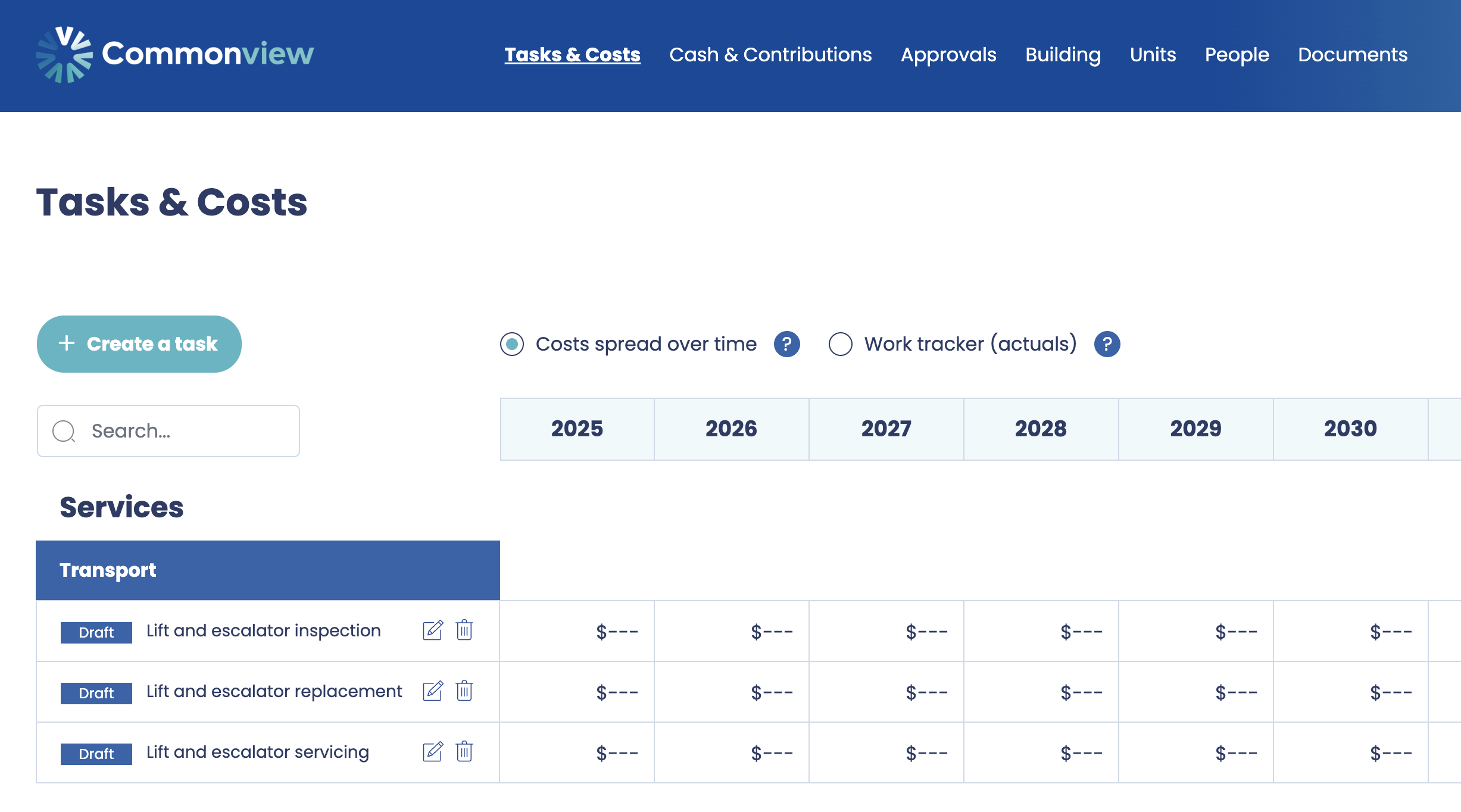
Draft tasks can also be created manually by users. This happens whenever not all the information required to generate costs and provisions is provided.
For example, if the frequency of a task is missing, Commonview cannot generate future expenses, and the task will remain in draft status.
Once all required fields are completed, the task is automatically finalised and included in the financial calculations.
Completing draft tasks
To finalise a draft task, you’ll need to review and complete the key details. Edit each task and make sure to:
-
Adapt the frequency proposed by the AI Assistant, if needed.
-
Set a “Next due” date to indicate when the task is next expected.
-
Enter the cost associated with performing the task.
If any of these fields are missing, the task will remain in draft status.
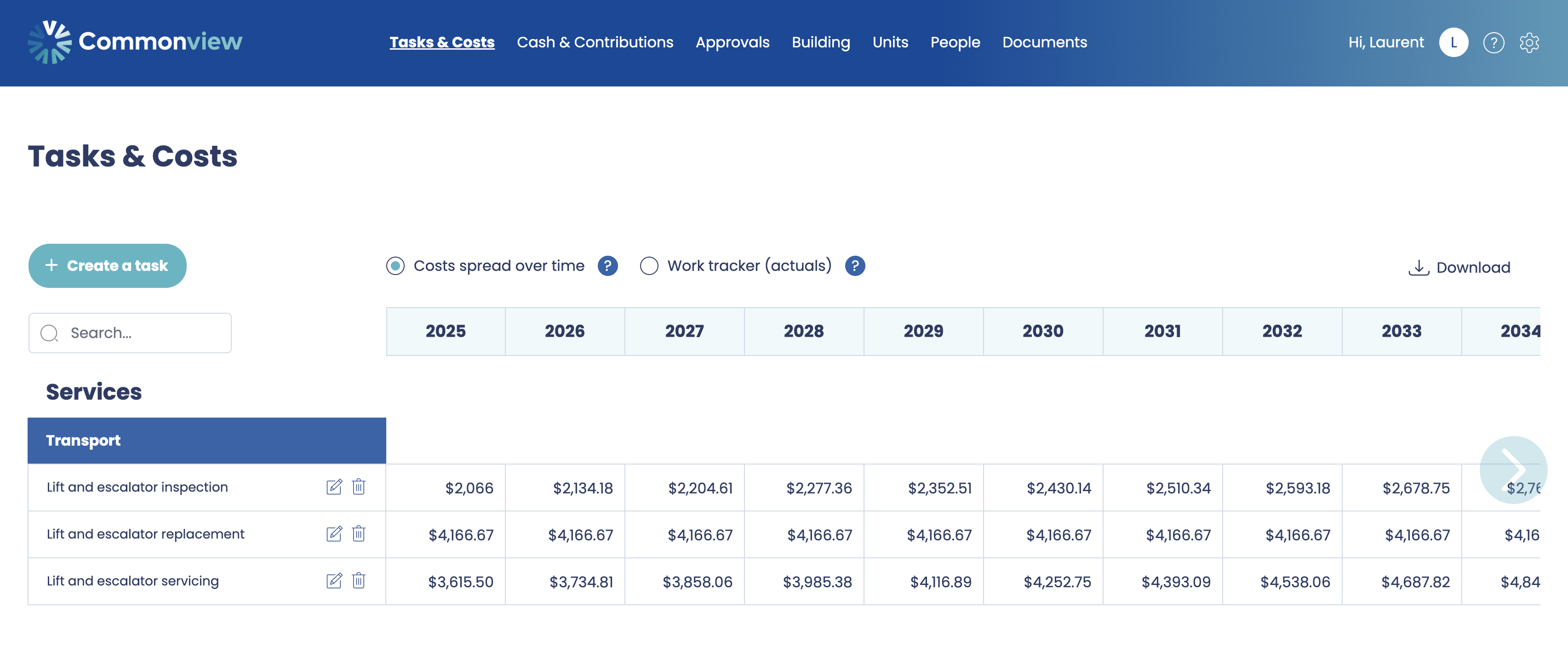
Once all required fields are completed, the task becomes finalised — expenses will automatically be generated according to the defined frequency, and provisions will be calculated for the next 30 years.
At this stage, you should have a fully functional Maintenance Plan
My contributions don’t show
If you can’t see your My Contributions data, it usually means some key information is missing.
To display your contributions correctly, make sure the following three items are set up:
-
Your unit is created and linked to your account
During sign-up, the app asks if you own a unit — you can create it at that step.
If you skipped it, go to Units in the main navigation and create a new unit there, linking it to your account. -
Your unit has a Utility Interest set
The app uses the Unit Utility Interest to calculate your share of the total maintenance contributions.
Without this value, your contribution percentage can’t be determined. -
The Number of Unit Titles is defined
This setting is also essential for contribution calculations.
If it hasn’t been set yet, go to Building → Legal Title to enter the number of unit titles.
Import an existing maintenance plan
If you already have a maintenance plan, you can recreate it on Commonview by manually entering your existing tasks.
This approach ensures your plan remains accurate while taking full advantage of forecasting, provisions, and contribution calculations.
How the import works
At this stage, importing an existing plan is done by creating tasks one by one from the Tasks & Costs page.
For each task in your existing plan, you should:
-
Create a new task on Commonview
-
Enter the task details (frequency, next due date, cost, etc.)
-
Set the Funding status of upcoming work
Although this requires some initial setup, it ensures your financial projections remain consistent with your historical funding.
Recreating tasks from your existing plan
When creating each task:
-
Match the task type (servicing, repair, or end-of-life replacement)
-
Use the same frequency as your existing plan
-
Set the next due date to the next scheduled occurrence
-
Enter the current or future expected cost
Repeat this process for all tasks in your plan.
Choosing the correct funding status
While importing an existing plan, special attention should be paid to the Funding status of upcoming work.
If the task has been correctly funded so far under your existing plan, we recommend selecting:
➡️ Partially funded so far
This tells the system that:
-
Contributions have already been collected in past years
-
There is no need to catch up on missing funding
-
Only the remaining provisions will be secured over future years
As a result, your future contributions will stay aligned with your existing plan, rather than increasing unexpectedly.
When to use “Not funded yet”
Choose Not funded yet only if:
-
The task has not been provisioned for previously, or
-
You want future years to fully fund the upcoming expense
This option will increase future contributions, as Commonview assumes no funds have been collected so far.
Key tips for a smooth import
-
Take your time — accuracy here leads to better forecasts later
-
Focus on next due dates, not historical ones
-
Approved years are treated as fixed, so ensure funding status reflects reality
-
You can always review and adjust tasks before submitting a budget for approval
Key points
Importing an existing maintenance plan means recreating your tasks thoughtfully, not starting from zero.
By selecting “Partially funded so far” where appropriate, you ensure the system respects the funding already in place and produces a maintenance plan that reflects your building’s real financial position.
Getting Help
We’re here to support you as you set up and manage your Maintenance Plan.
If you ever get stuck or have a question, there are two easy ways to get assistance.
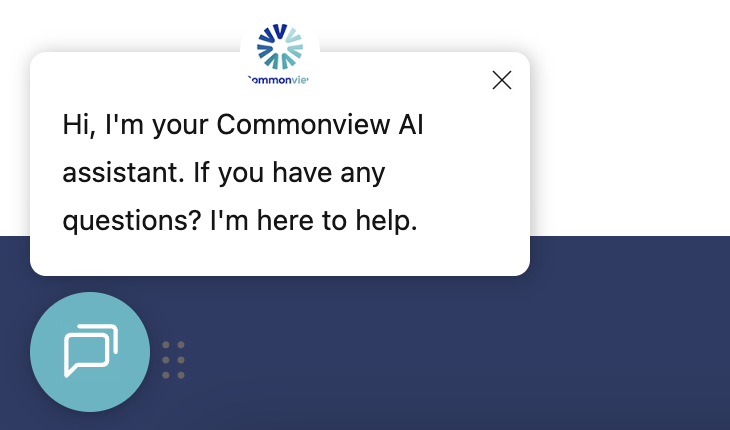
Using the chat bot
You’ll notice a chat bot displayed at the bottom of the screen throughout the platform.
The chat bot is there to:
-
Guide you through features
-
Answer common questions
-
Help you understand specific fields or calculations
-
Provide quick support while you work on your Maintenance Plan
It’s the fastest way to get help without leaving the page you’re on.
Contacting Support
If you need further assistance, you can contact our support team directly.
To do this:
-
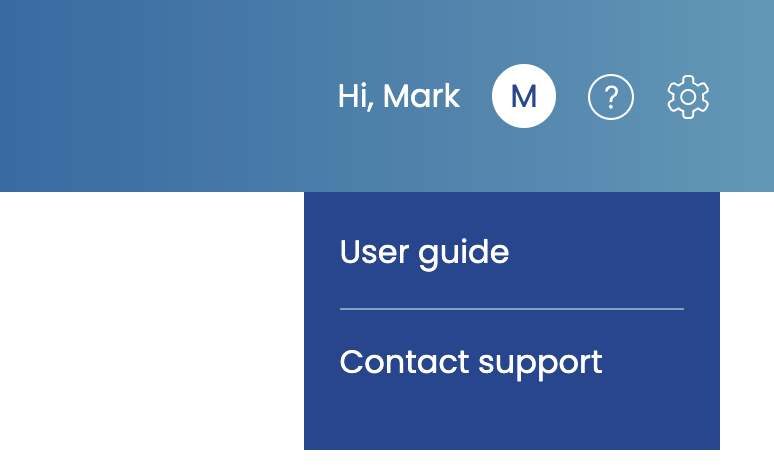
Click the question mark icon in the top right corner of the screen.
-
Select Contact Support.
Our team will be happy to help you resolve any issues or answer your questions.
Tip
If you’re unsure how something works, try the chat bot first — it can often provide instant guidance while you continue working.