People
Manage users, roles, and permissions so the right people have access to the right information.
Create or edit a user
The Create a User and Edit a User features allow an admin to add or edit new users to the system and define their access and responsibilities.
How to create a user
Required information
When creating a user, the following details are requested:
-
First Name – the user’s given name.
-
Last Name – the user’s family name.
-
Email Address – used for login and communication.
-
Security Role – defines the user’s level of access within the platform. See the User permissions section for details.
-
Groups – assign the user to one or more groups.
-
Currently, there is only one group: Body Corporate Committee.
-
If this box is checked, the user will appear in the Committee Members list.
-
-
Units – assign the user to any number of units:
-
The user may not be linked to any unit,
-
Linked to a single unit, or
-
Linked to multiple units.
-
The user can be assigned to existing units or an admin user can create a new one during the process.
-
What happens next
-
After the user is created, an automatic email is sent to them.
-
This email allows the new user to finalise their account creation, set a password, and access the platform.
Key points
-
Security roles control what the user can see and do.
-
Groups help manage user's responsibilities.
-
Linking users to units allows them to view unit-specific contributions.
-
Admins can edit or remove users later if needed.
Manage committee members
Users who are added to the Body Corporate Committee group will automatically appear on the Committee Members page.
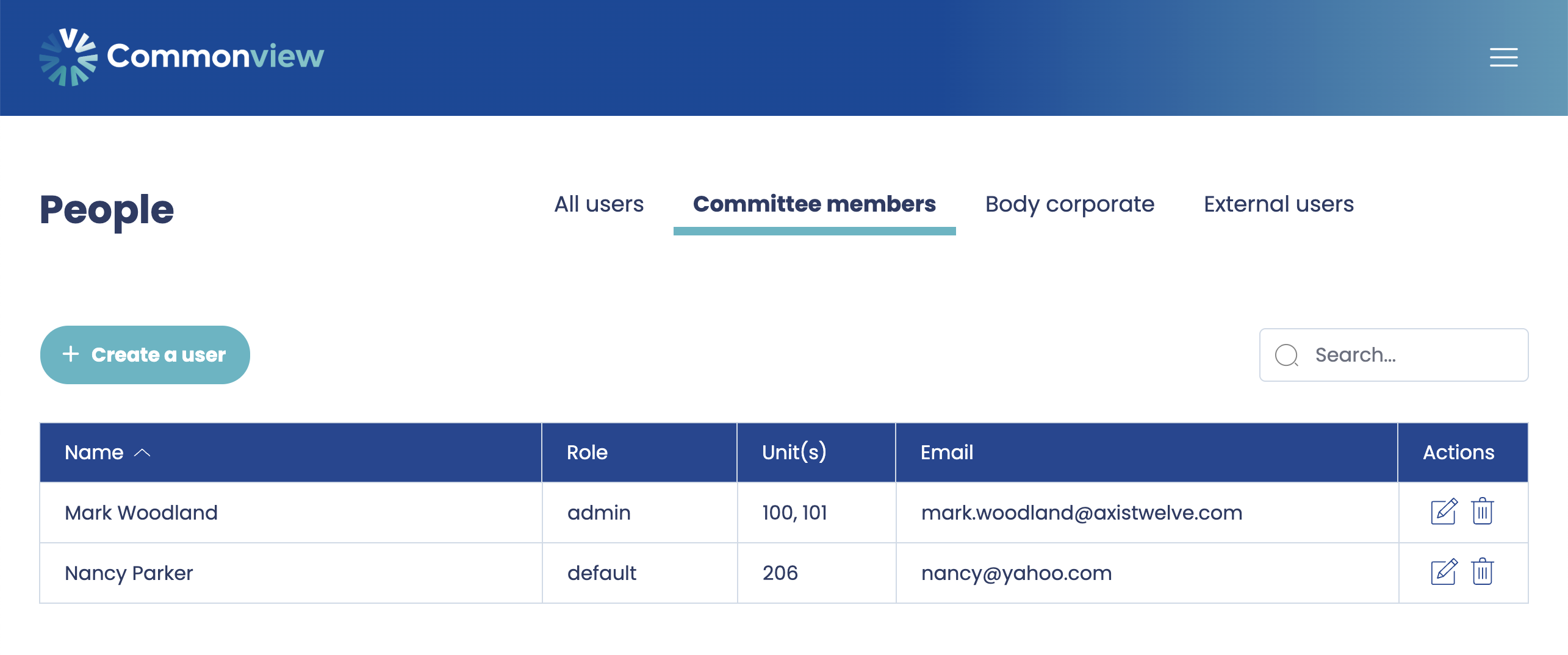
This page provides a central list of all committee members, making it easy to view and manage their details.
Key points
-
Only users assigned to the Body Corporate Committee group appear on this page.
-
Adding or removing a user from the group updates their committee membership automatically.
- Adding a user to the group can be done from the edit a user side panel
Boby corporate
The Body Corporate page lists all users who are linked to at least one unit.
By definition, any unit owner is considered a member of the body corporate, so this page provides a complete overview of all owners within the building.
Key points
-
Only users assigned to one or more units appear on this page.
-
This page allows you to see a full list of owners, their contact details, and the units they are linked to.
External users
The External Users page lists all users who are not linked to any unit.
These users typically need access to the maintenance plan or other parts of the system without being a member of the body corporate.
How it works
-
Admin users can create external users and assign them appropriate security roles, such as read-only access.
-
These users will not appear on the Body Corporate page, since they are not associated with any units.
Examples of external users
External users might include:
-
Building surveyors – need to see scheduled maintenance tasks and timing to perform inspections or works.
-
Contractors or service providers – need read-only access to plan works or review completed maintenance.
-
Property managers or consultants – monitor maintenance planning, budgeting, and reporting without being an owner.
Key points
-
External users are not owners and do not appear in the body corporate list.
-
Their access is controlled via security roles, which define what they can view or edit.
-
This allows organisations to provide restricted, targeted access to third parties while keeping the main body corporate data secure.
User permissions
The Security Role assigned to a user determines their level of access within the platform.
There are three levels of access, each designed to meet the needs of different types of users.
1. Default
-
Access Level: Read-only
-
Pages Accessible:
-
Cash & Contributions (Cashflow, Contributions)
-
Typical Users: Standard body corporate members (unit owners)
-
Purpose: Allows owners to view their contributions and the maintenance plan without making changes.
2. Admin
-
Access Level: Full access
-
Pages Accessible: All pages, including:
-
Tasks & Costs
-
Cash & Contributions
- Approvals
- Building
- Units
- People
- Documents
-
Settings
-
-
Typical Users: Building managers or committee members responsible for updating the plan and managing settings
-
Purpose: Allows users to create, edit, and delete data, as well as manage other users and system settings.
3. Viewer
-
Access Level: View-only
-
Pages Accessible: All pages
-
Typical Users: External consultants, surveyors, or service providers
-
Purpose: Allows users to monitor and review all information without the ability to make any changes.
Key points
-
Security roles ensure that users have access appropriate to their responsibilities.
-
Roles can be assigned when creating a user or updated later via the Edit User side panel.
-
Using these roles helps maintain data integrity while allowing transparency for all stakeholders.