Tasks & Costs
Create and track maintenance tasks, assign costs, and monitor progress from start to finish.
- Create a task
- Task types
- Funding status of upcoming work
- Costs spread over time & Work tracker (actuals) views
- How Costs spread over time are calculated
- Download the plan as CSV
- Maintenance plan PDF report
Create a task
Use the create a task button to create a new task
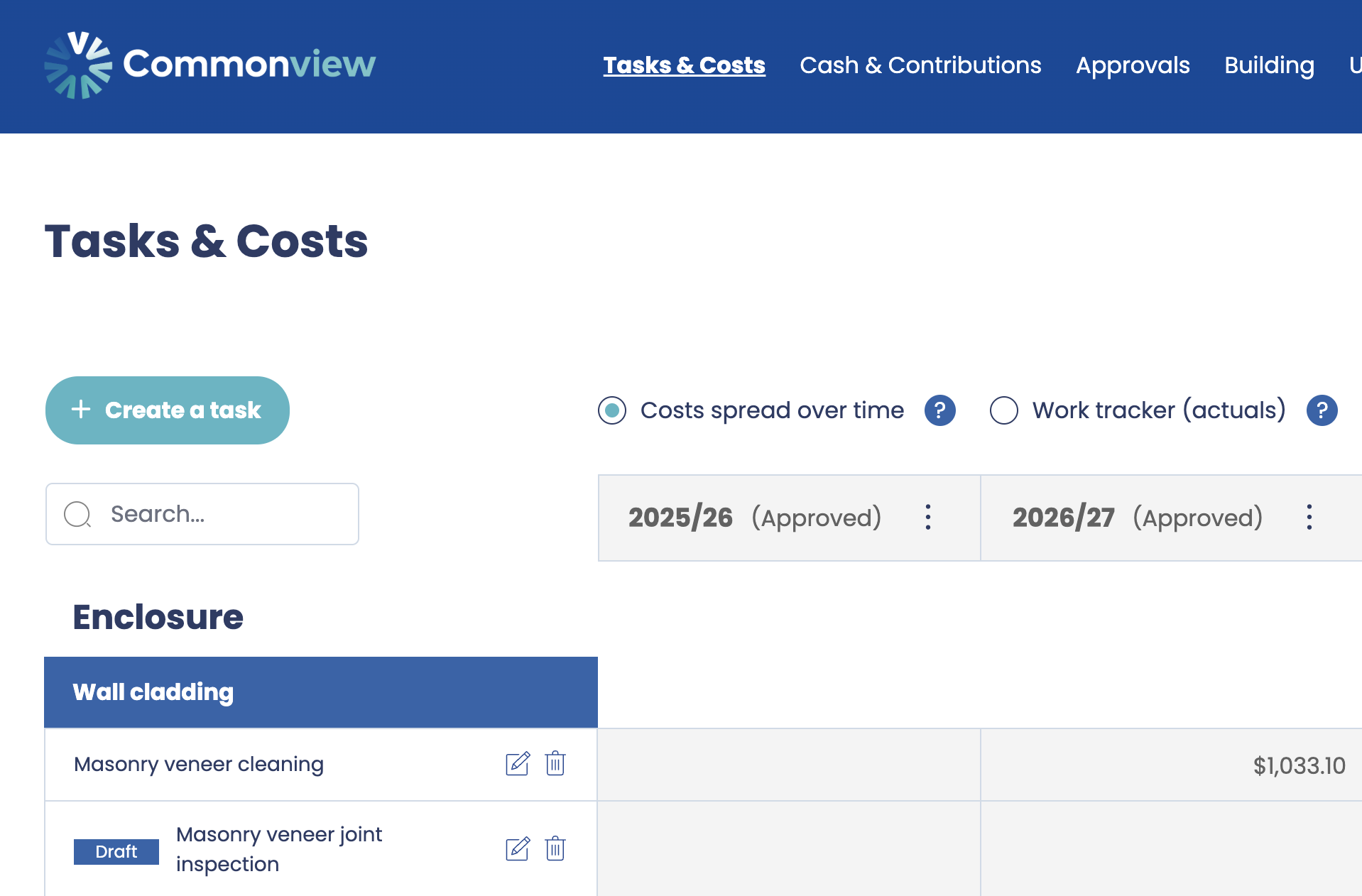
A side panel opens. Fill in the details and click the create button to create the task.
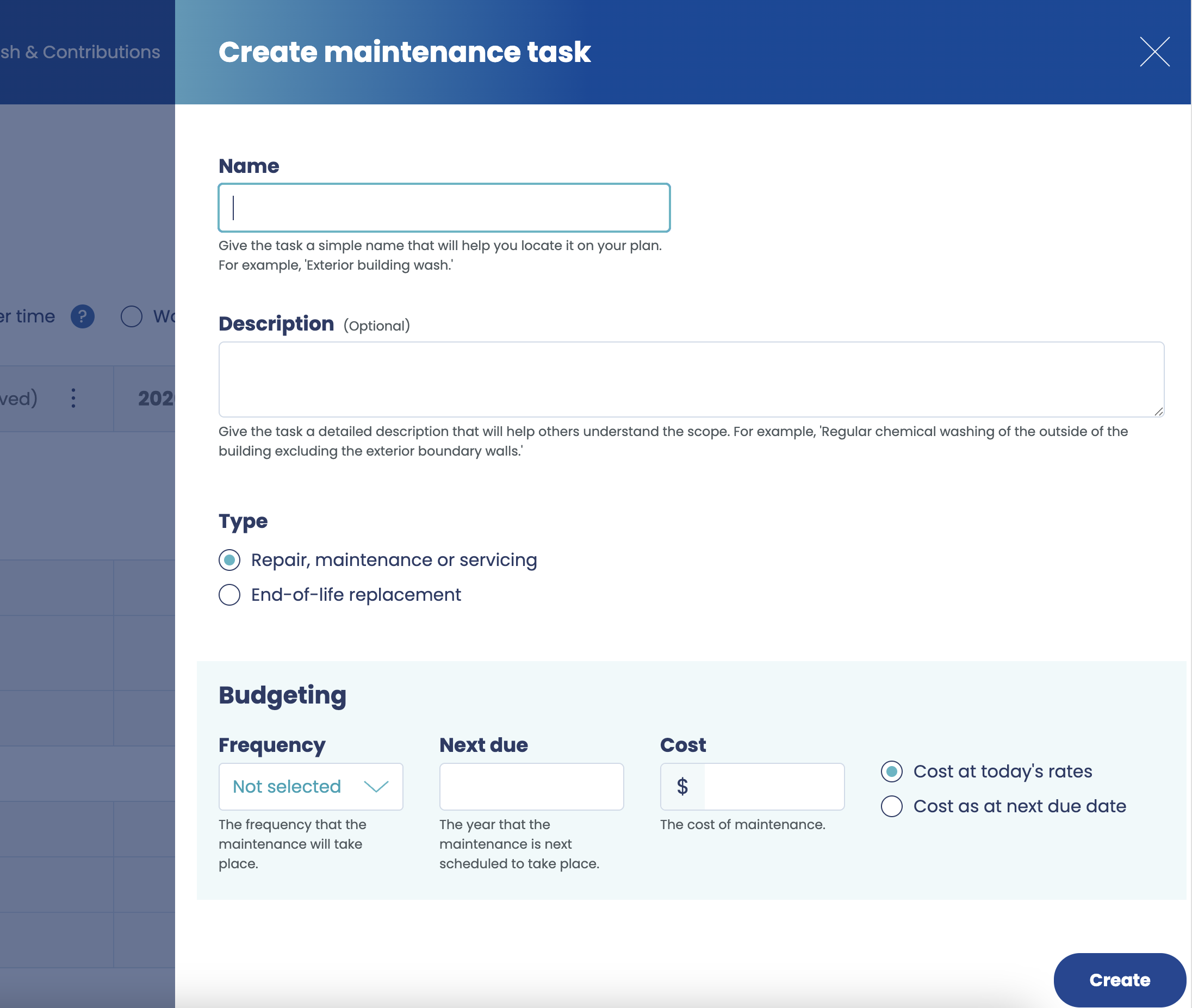
There are 3 types of tasks you can create. Go to the next page to find out more.
Task types
When creating a maintenance plan, you can add different types of tasks depending on what needs to be planned or tracked.
There are three main task types:
-
Repair, maintenance or servicing
-
End-of-life replacement for an existing item
-
End-of-life replacement for an item to be installed in the future
Each task type captures slightly different information, helping you plan and budget accurately.
1. Repair, maintenance or servicing
Use this type for any routine or reactive maintenance work — for example, annual boiler servicing, lift inspections, or emergency repairs.
You’ll be asked to enter:
-
Frequency – how often this task needs to occur (e.g. yearly, etc.).
-
Next due date – the date when the next instance of this task is due.
-
Cost – the estimated cost of completing this task each time.
- Funding status – Read more
This task type helps you plan for regular or recurring maintenance activities and manage ongoing service costs.
2. End-of-life replacement for an existing item
Use this when an item is already installed and will need to be fully replaced after a certain number of years — for example, replacing a roof, a boiler, or flooring.
You’ll be asked to enter:
-
Life span – the number of years the item is expected to last before needing replacement.
-
Next due date – the year when the next replacement is expected to occur.
-
Cost of replacement – the expected cost to replace the item when it reaches the end of its life.
- Funding status – Read more
This helps you forecast future capital expenditure for existing assets.
3. End-of-life replacement for an item to be installed in the future
Use this type for items that are not yet installed but will be added later — for example, a new lift being installed next year or a solar panel system planned for a future upgrade.
You’ll be asked to enter:
-
Life span – how long the item is expected to last before needing replacement.
-
Next due date – the year when the first replacement will be needed.
-
Cost of replacement – the cost to replace the item at the end of its life.
Note:
The key difference from an existing item is that the initial installation cost of a future item is a capital expenditure and will not appear on your maintenance plan.
However, any future replacements or repairs related to this item will appear once the item has been installed.
Funding status of upcoming work
When creating or editing a task, you may be asked to specify the Funding status of upcoming work.
This setting helps Commonview correctly calculate how provisions are spread over time, especially when some years have already been approved.
Why this matters
The system generates provisions for the years leading up to a task’s next due date.
Example:
-
Next due date: 2029
-
Frequency: Every 3 years
The system will normally generate provisions for:
-
2026
-
2027
-
2028
If 2026 is already approved, Commonview can no longer change the provisions for that year.
At this point, it needs to know whether funds have already been collected for this upcoming work, or if the remaining years need to cover the full cost.
That’s where Funding status of upcoming work comes in.
Available options
Not funded yet
-
Commonview assumes no money has been collected so far for this task.
-
All funds required for the upcoming work will be collected from the remaining open years up to the due date.
-
This results in higher future contributions, as fewer years are available to build up the required amount.
Partially funded so far
-
Commonview assumes that some contributions have already been collected.
-
Only the remaining amount will be spread across future open years.
-
This results in lower future contributions, as part of the funding is already secured.
When this setting is disabled
In some cases, the Funding status of upcoming work field may be disabled. This happens when:
-
There are no open years before the expense is due, or
-
The number of open years is greater than or equal to the task frequency, meaning there are already enough years available to fully provision for the expense.
In these situations, the system can safely calculate provisions without needing additional input.
Key points
-
This setting only affects future provisions, never approved years.
-
It helps maintain accurate funding according to existing funding.
-
Choosing the correct funding status ensures contributions are fairly and realistically distributed.
-
Approved years are always treated as fixed and cannot be recalculated.
Costs spread over time & Work tracker (actuals) views
The Tasks & Costs page has 2 views:
- Costs spread over time
- Work tracker (actuals)
Click on the 2 radio buttons to switch from one to the other:
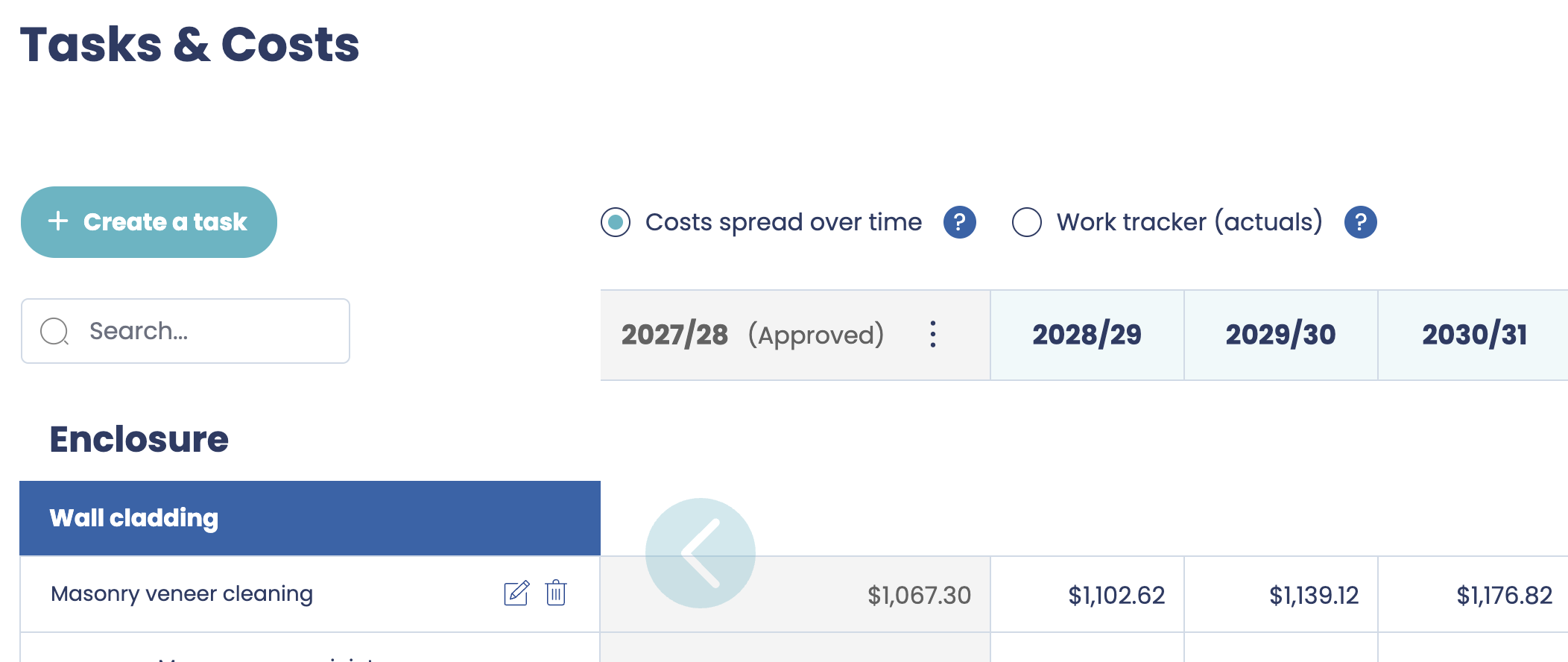
Costs spread over time
This view spreads the cost of each task evenly over the years leading up to it.
It helps estimate how much should be set aside annually to cover future maintenance and replacement costs.
While this is a key input into service charge calculations, it’s not the final amount each resident pays.
For a full breakdown of contributions and to understand how each resident’s share is calculated, go to the Cash & Contributions page.
Work tracker (actuals)
This view shows tasks and their full cost in the year they are expected to occur.
Use it to track work status, record notes, and upload supporting files — but only after that year’s costs have been approved. This protects your updates from becoming disconnected if task timing is later changed.
For financial planning, use the and to understand how each resident’s share is calculated, go to the Cash & Contributions view.
How Costs spread over time are calculated
To help you plan your budget evenly across the years, the system spreads the cost of each task over the years leading up to when it is due.
This approach ensures that funding is collected gradually, so the full amount is available when the task needs to be completed.
Example: servicing task due in 2030
Let’s say you create a servicing task that:
-
Has a next due date of 2030, and
-
Costs $1,000 to complete.
Since the maintenance plan for 2025 has already been approved, the system begins spreading the cost from 2026 up to 2029 — the four years leading up to 2030.
Step 1: divide the cost across the period
The total cost of $1,000 is divided evenly over 4 years:
$1,000 ÷ 4 = $250
Each year from 2026 to 2029 receives $250, so by the start of 2030, the full amount has been collected.
| Year | Allocation | Cumulative Total |
|---|---|---|
| 2026 | $250 | $250 |
| 2027 | $250 | $500 |
| 2028 | $250 | $750 |
| 2029 | $250 | $1,000 |
Note: We do not include 2030 itself, because the cost needs to be fully collected by the time the task is due.
Step 2: next period (2030–2034)
After the 2030 servicing is complete, the next cycle begins — the next servicing is due in 2035.
The cost for this future servicing is adjusted for inflation.
With an inflation of 3.3%, the inflation adjustment increases the cost to $1,176, the system now spreads that cost evenly across five years (2030–2034):
$1,176 ÷ 5 = $235.25
Each year from 2030 to 2034 receives $235.25, ensuring another full cycle of cost collection before 2035.
| Year | Allocation | Cumulative Total |
|---|---|---|
| 2030 | $235.25 | $235.25 |
| 2031 | $235.25 | $470.50 |
| 2032 | $235.25 | $705.75 |
| 2033 | $235.25 | $941.00 |
| 2034 | $235.25 | $1,176.25 |
Summary
-
Costs are spread evenly across the years before a task’s due date.
-
The due year itself is not included, so the funds are ready at the start of that year.
-
For future cycles, the cost is adjusted for inflation and spread over the new period until the next due date.
This ensures your maintenance plan always remains balanced, predictable, and financially sustainable.
Download the plan as CSV
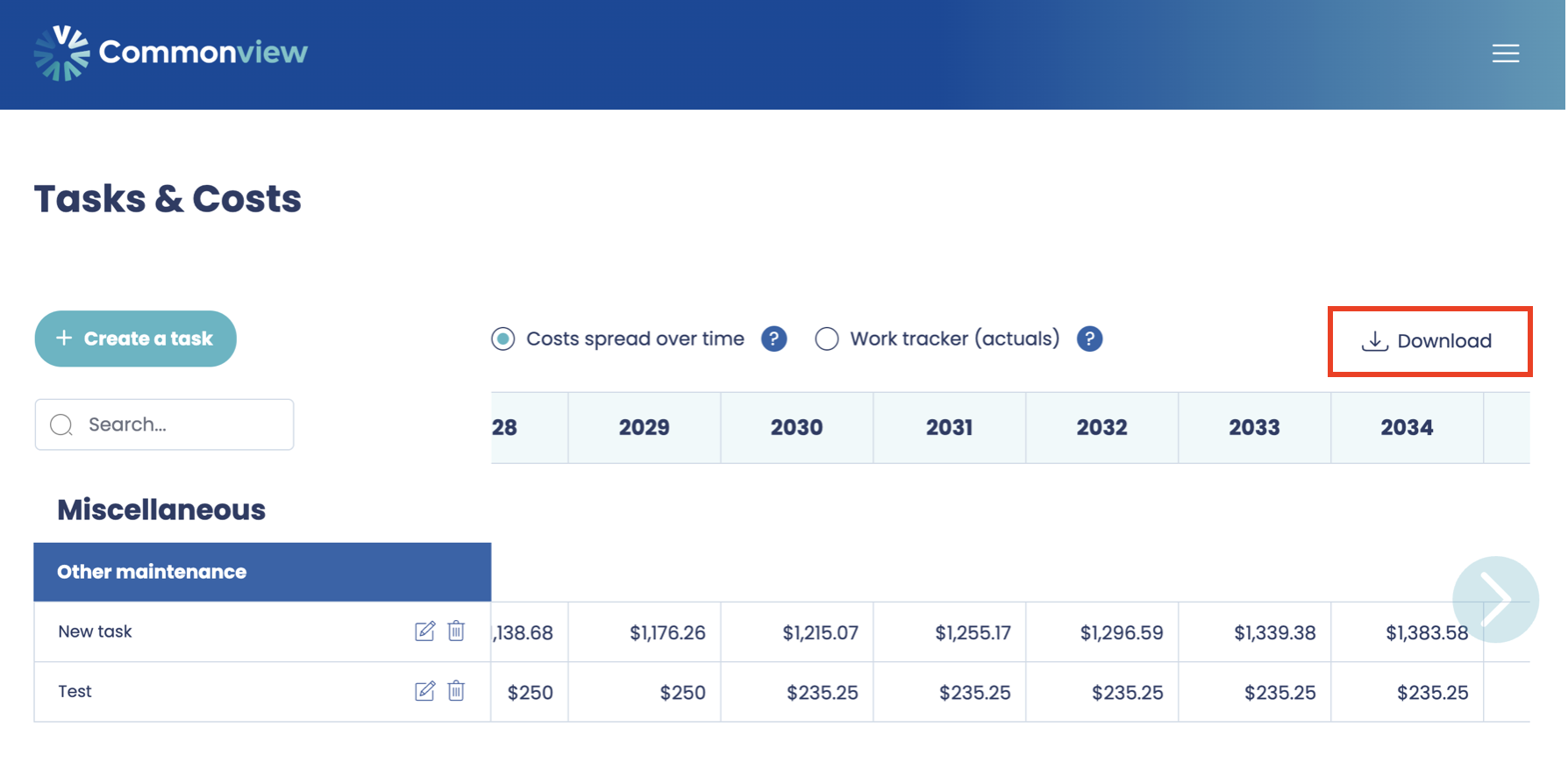
You can download the Maintenance Plan as a CSV for further analysis in Excel.
Simply click the Download button at the top right of the screen:
Maintenance plan PDF report
For Approved or Submitted years, you can download the Maintenance Plan by clicking the  button then the Download button:
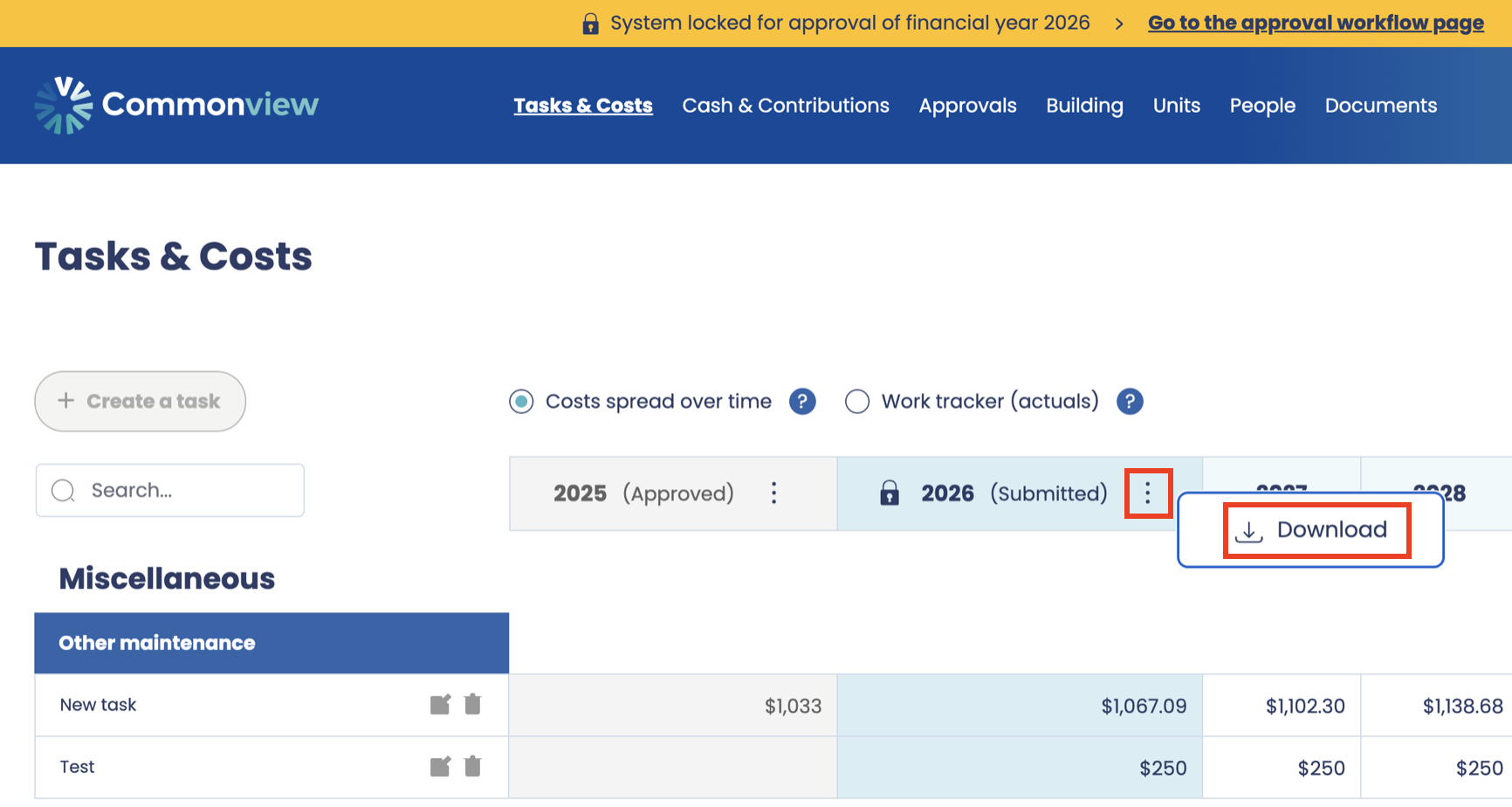
It can also be downloaded from the Approval page.
This report is presented in 2 parts:
- Part 1 contains the high-level information detailing the levy contributions pertaining to each
unit, as well as the key assumptions that were made to support the calculation of per unit
contributions - Part 2 contains the detailed breakdown of expenses which form the basis of calculating unit
contributions for the forthcoming year